Touchscreen buyer guide · For schools
Choose a touchscreen your school can actually use.
Compare the content, support, update process, and long-term flexibility that matter after installation day.
A buying guide from Rocket Alumni Solutions. Product details below describe Rocket; use the questions to assess every vendor.
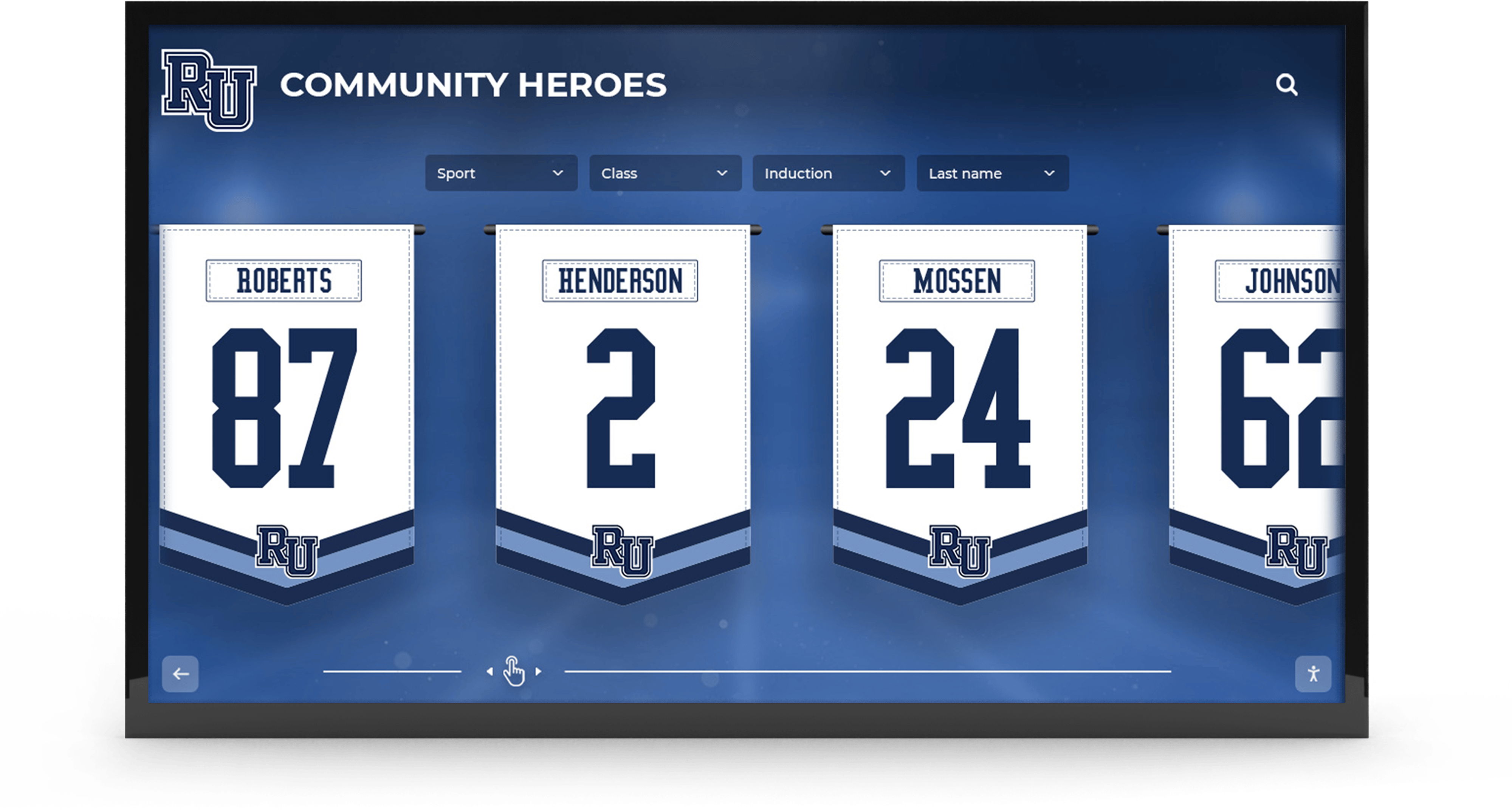
01 / The shortlist
Five questions to ask every vendor
A display is only useful if your team can keep it current. Bring these questions to each conversation.
- 01
Can our staff update it?
Ask to see the editor and have a staff member try a routine change.
- 02
What limits apply to content?
Confirm storage, profiles, photos, videos, users, and any future charges.
- 03
Can people explore it online?
Check whether the same stories work beyond the physical display.
- 04
Who helps after installation?
Ask what support is included and how your team reaches a real person.
- 05
Can one system grow with us?
Test new sports, awards, donor stories, and other uses before committing.
02 / Compare the experience
Look past the hardware spec sheet.
Use the same criteria for every option. Rocket's details are shown here; ask other vendors to demonstrate their answers.
| What to evaluate | Ask the vendor | Rocket evidence |
|---|---|---|
| Content capacity | What limits or added fees apply? | Unlimited storage, users, and folders |
| Content management | Can nontechnical staff make updates? | Web editor and 70+ premade templates |
| Access beyond the display | Can visitors view content from other devices? | Touchscreen, web, and mobile access |
| Ongoing support | How and when can we get help? | 24/7 support and a dedicated customer success manager |
| Ongoing updates | How does the software improve over time? | Weekly software updates |
Rocket details reflect its current product offering. Request a live walkthrough to confirm the fit for your school.
Book a Demo03 / The daily workflow
Built for the staff who will run it.
In a demo, ask to see a real edit: add a profile, choose a template, publish the change, and find it on the display and the web. That tells you more than a polished slideshow.
See the workflow live04 / In practice
Make the experience easy to change.
School teams need room to add new athletes, events, and stories without rebuilding the display. Look for an editing path your staff feels comfortable using.
Read the recognition guide ↗“The display is eye-catching, ease of use is great for all generations, and the ability to add/remove/change is very user-friendly.”
05 / Test your shortlist
Make a confident shortlist.
Bring your requirements. We will show where Rocket fits, answer the technical questions, and walk through the daily workflow.
Book a DemoKeep researching
Use these resources to compare display options and plan your recognition project.